
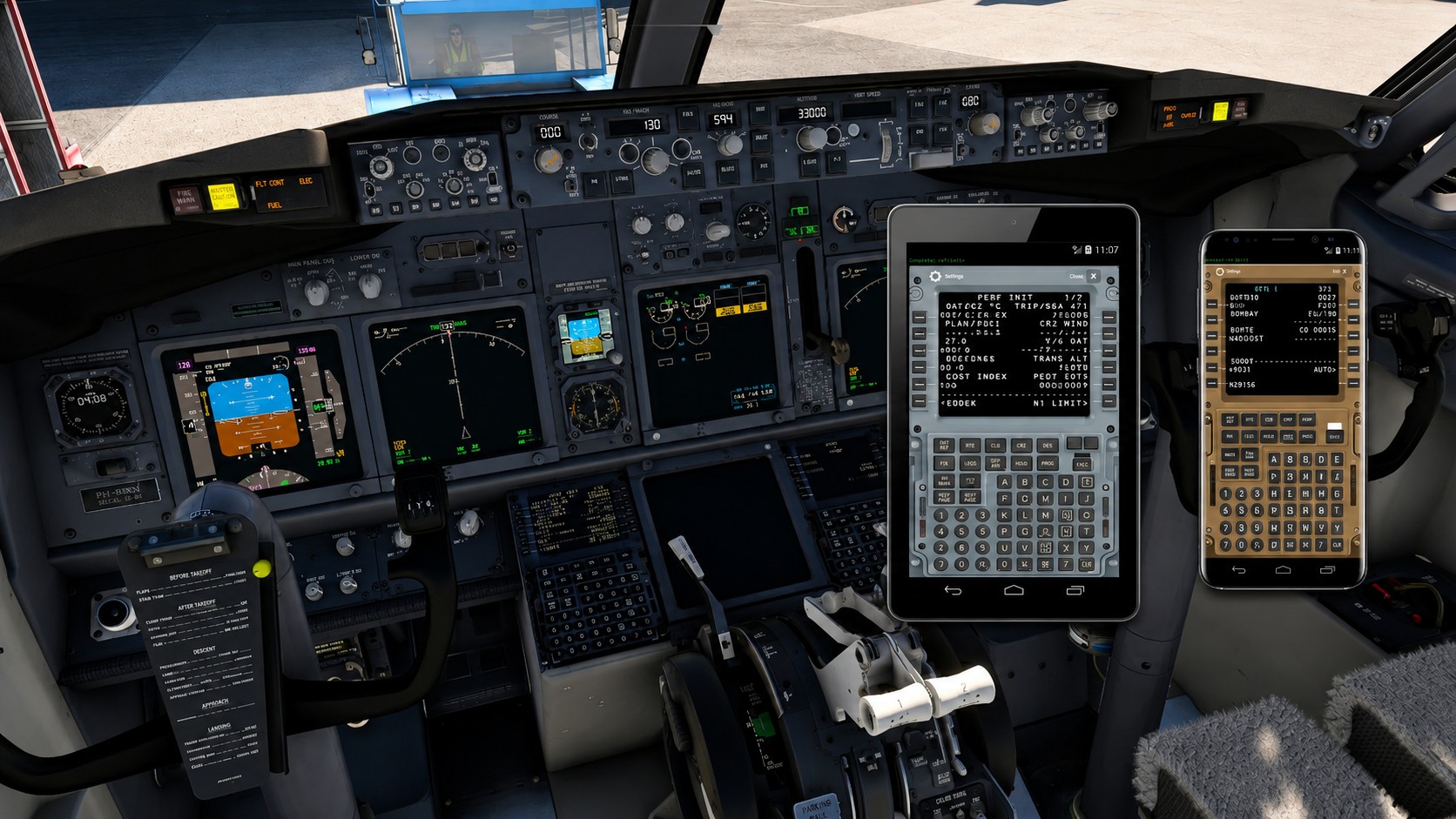
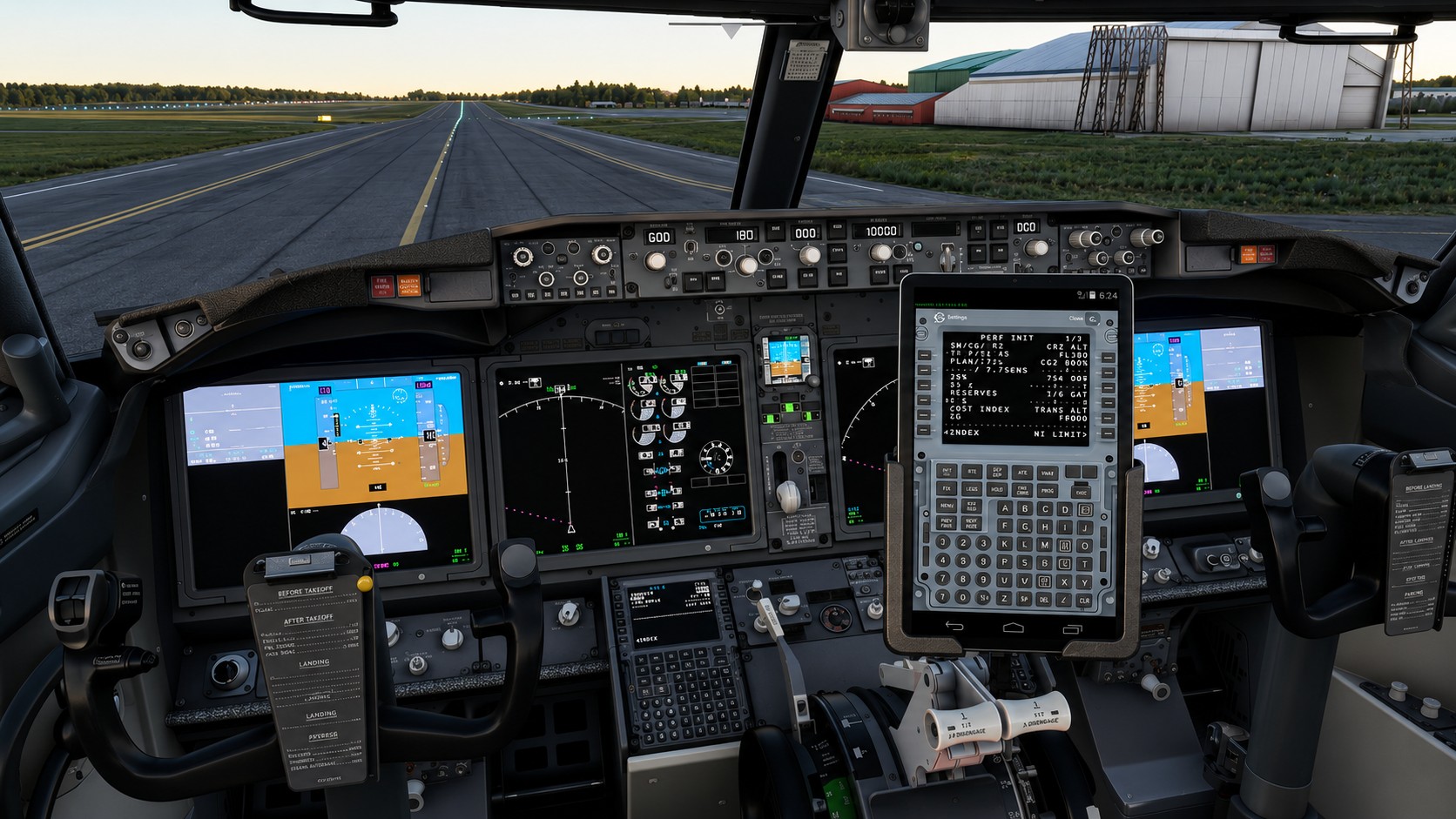
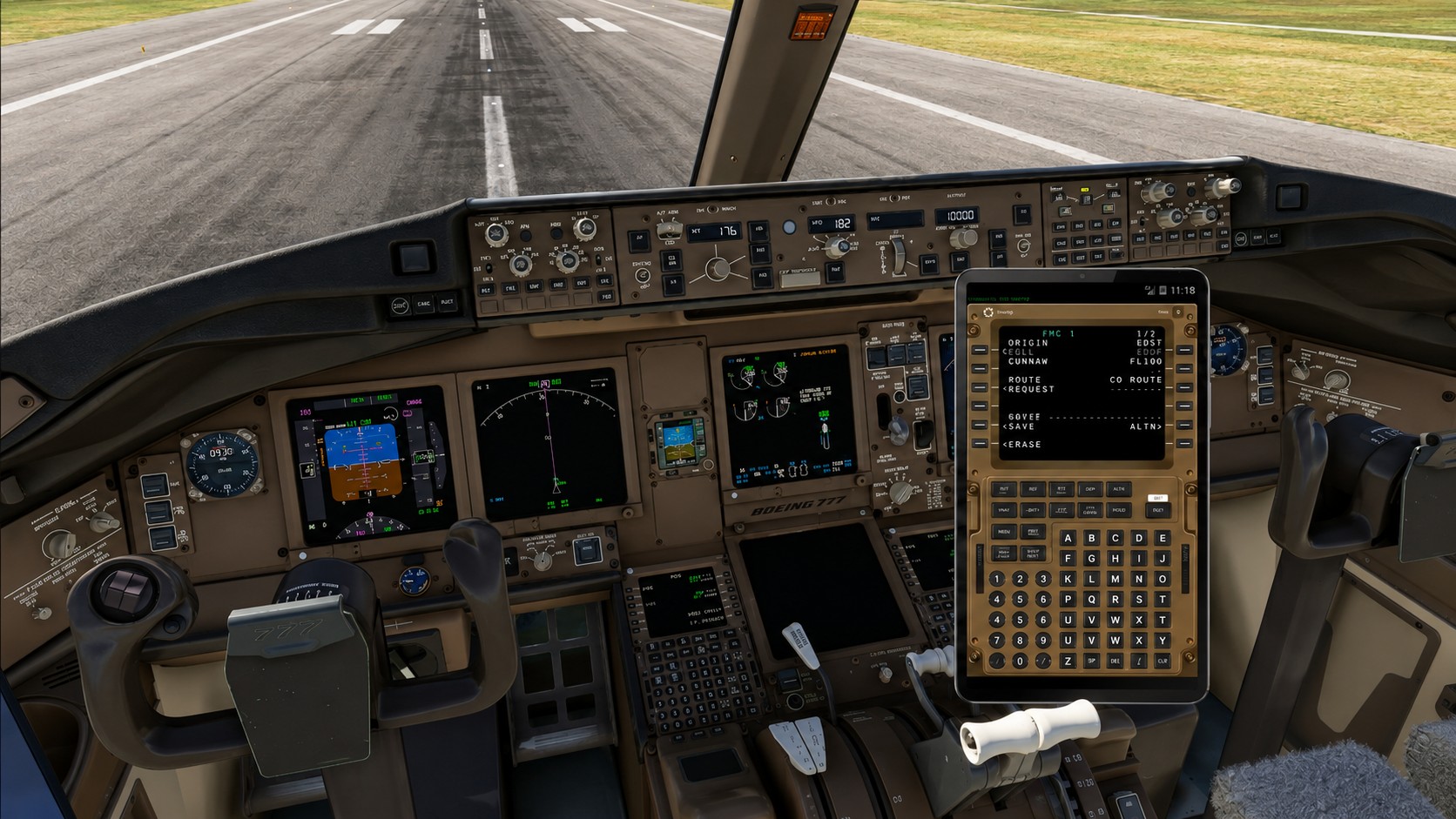
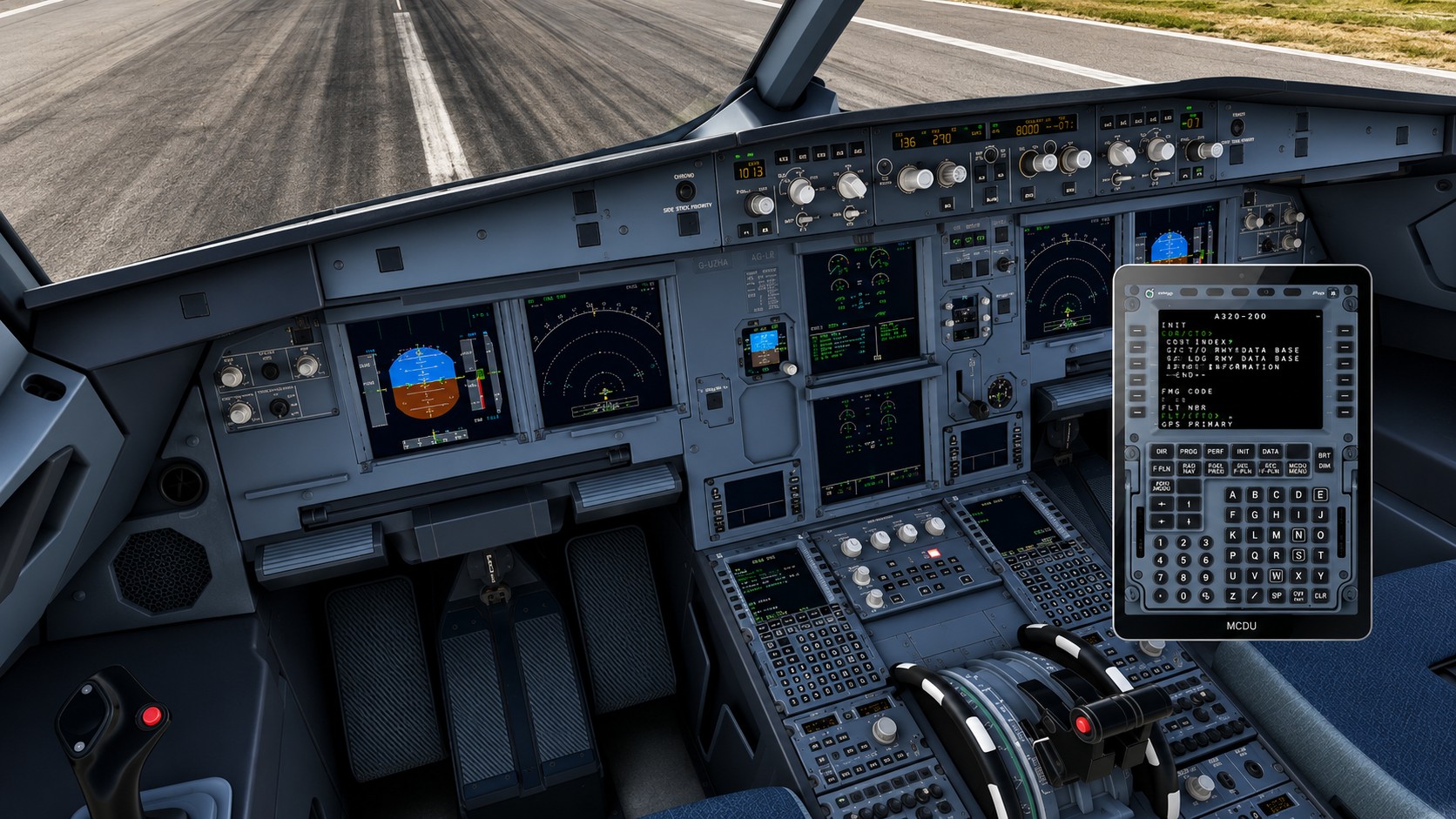
Many of you will remember the excellent Virtual FMC apps we had back in the Prepar3D daysβmy favorite for years. Since the move to MSFS 2020, several web-based CDU solutions have appeared. While they work well, Iβve always missed the responsiveness of a true native app. Web apps are convenient, but native apps are simply faster, smoother, and more reliable.
So, I decided to build one myself!
FlightPadFMC is a fully native Android application that turns your tablet into a PMDG 777/737 CDU & FlyByWire A320 at the moment. No browser, no complex web server, and minimum lag. Itβs a clean, high-performance experience designed to feel like the real hardware sitting on your flight deck.
A Note on iOS: I know many would love an iOS version. Unfortunately, I donβt own a Mac to build and sign iOS apps, so I cannot provide one at this time. However, I am releasing the project as Open Source on GitHub very soon. The core logic is clean and well-structured, so if anyone in the community has a Mac and the skills to port it, I would welcome the collaboration!
=============================================================
FlightPadFMC β Native Android FMC / MCDU for PMDG 737, PMDG 777 & FlyByWire A320
Version 0.2.15
By SilenceDIY (Marcus)
https://github.com/diymarcus/FlightPadFMC
====================================================
DESCRIPTION
=============================================================
FlightPadFMC turns your Android tablet or phone into a fully functional CDU /
MCDU for the PMDG 737, PMDG 777 and FlyByWire A320 in Microsoft Flight
Simulator 2020 and 2024.
Unlike web-based solutions, this is a true native Android app β faster,
smoother and more responsive. The CDU / MCDU skins are pixel-accurate, touch
input is calibrated, and the display updates live over your local WiFi.
Three separate Android apps are provided, one per aircraft type:
- 737PMDG.apk β PMDG 737 NGXu (700 / 800 / 900)
- 777PMDG.apk β PMDG 777-300ER / 777F
- FBWA320.apk β FlyByWire A32NX (via SimBridge)
One Windows server acts as the bridge between MSFS and the Android apps. The
same server handles all three aircraft β simply launch the matching app on
your tablet and the server figures out the rest.
Supported platforms:
- Microsoft Flight Simulator 2020 (SimConnect v11)
- Microsoft Flight Simulator 2024 (SimConnect v12)
- Android 4.4 through Android 14 (single APK per aircraft)
- Windows 10 / 11, 64-bit (server app)
=============================================================
HOW IT WORKS
=============================================================
PMDG 737 / 777:
MSFS + PMDG Aircraft
|
SimConnect + MobiFlight WASM
|
FlightPadFMC Server (FlightPadFMCServer.exe)
|
WiFi / LAN (WebSocket)
|
FlightPadFMC App (Android)
FlyByWire A320:
MSFS + FlyByWire A32NX
|
FlyByWire SimBridge
|
FlightPadFMC Server <-- proxies SimBridge
|
WiFi / LAN (WebSocket)
|
FBWA320 App (Android)
The server connects to MSFS via SimConnect (PMDG) or proxies SimBridge
(FlyByWire), reads the CDU / MCDU screen data, and streams it to the Android
app over your local network. Key presses are sent back to the server and
forwarded to the aircraft in real time.
=============================================================
REQUIREMENTS
=============================================================
General (all users):
- Microsoft Flight Simulator 2020 OR 2024
- Windows 10 / 11, 64-bit
- Android device on the same WiFi / LAN as the PC
- Android 4.4 or newer
For PMDG 737 / 777:
- PMDG 737 NGXu or PMDG 777 add-on
- PMDG SDK enabled in the aircraft options (Step 1)
- MobiFlight WASM Module installed in the Community folder (Step 2)
For FlyByWire A320:
- FlyByWire A32NX (free, from flightsim.to or FBW installer)
- FlyByWire SimBridge running on the same PC (Step 3)
=============================================================
INSTALLATION β STEP BY STEP
=============================================================
This is an Alpha release. Bug reports and feedback are very welcome β they
help me track down the last rough edges before a proper 1.0.
=============================================================
STEP 1 β Enable the PMDG SDK (skip if you only use the A320)
=============================================================
The PMDG SDK must be enabled so external tools (like FlightPadFMC) can read
the CDU data. You need to edit a small .ini file once per aircraft per sim.
In every case:
- Open the file in a text editor (Notepad works).
- Add or edit the [SDK] section so it contains:
[SDK]
EnableDataBroadcast=1
EnableCDUBroadcast.0=1
- Save the file. IMPORTANT: make sure there is a blank line / trailing
newline at the end β PMDG has been known to discard the [SDK] section
if the file does not end cleanly.
- Restart MSFS if it was already running.
- Load the aircraft fully, past "ready to fly", at least once. The file
is regenerated by PMDG on first load, so if it does not exist yet, fly
the aircraft once and it will appear.
=============================================================
MSFS 2020
=============================================================
PMDG 737 (MSFS 2020, MS Store):
%LOCALAPPDATA%\Packages\Microsoft.FlightSimulator_8wekyb3d8bbwe\LocalState\
packages\pmdg-aircraft-738\work\737NG3_Options.ini
PMDG 737 (MSFS 2020, Steam):
%APPDATA%\Microsoft Flight Simulator\Packages\pmdg-aircraft-738\work\
737NG3_Options.ini
PMDG 777 (MSFS 2020, MS Store):
%LOCALAPPDATA%\Packages\Microsoft.FlightSimulator_8wekyb3d8bbwe\LocalState\
packages\pmdg-aircraft-77w\work\777_Options.ini
PMDG 777 (MSFS 2020, Steam):
%APPDATA%\Microsoft Flight Simulator\Packages\pmdg-aircraft-77w\work\
777_Options.ini
=============================================================
MSFS 2024
=============================================================
MSFS 2024 stores PMDG options under a different root than 2020 β look in
the "Limitless" package, inside a WASM\MSFS2024 subfolder.
PMDG 737 (MSFS 2024, MS Store):
%LOCALAPPDATA%\Packages\Microsoft.Limitless_8wekyb3d8bbwe\LocalState\
WASM\MSFS2024\pmdg-aircraft-738\work\737NG3_Options.ini
PMDG 737 (MSFS 2024, Steam):
%APPDATA%\Microsoft Flight Simulator 2024\WASM\MSFS2024\
pmdg-aircraft-738\work\737NG3_Options.ini
PMDG 777 (MSFS 2024, MS Store):
%LOCALAPPDATA%\Packages\Microsoft.Limitless_8wekyb3d8bbwe\LocalState\
WASM\MSFS2024\pmdg-aircraft-77w\work\777_Options.ini
PMDG 777 (MSFS 2024, Steam):
%APPDATA%\Microsoft Flight Simulator 2024\WASM\MSFS2024\
pmdg-aircraft-77w\work\777_Options.ini
The folder name may show up as "pmdg-aircraft-737" or "pmdg-aircraft-777"
instead of "738" / "77w" depending on which PMDG build you own. If you
don't see the exact folder above, look for any folder starting with
"pmdg-aircraft-73" (for the 737) or "pmdg-aircraft-77" (for the 777) in
the same parent directory β that's the one to edit.
=============================================================
STEP 2 β Install the MobiFlight WASM Module (skip if you only use the A320)
=============================================================
The MobiFlight WASM Module (a.k.a. "mobiflight-event-module" / "EVENT MODULE")
runs inside MSFS and exposes aircraft L-variables that FlightPadFMC needs for
the PMDG 737 EXEC LED. The install procedure is different between MSFS 2020
and MSFS 2024 β follow the section that matches your sim.
=============================================================
MSFS 2020 β manual copy into Community folder
=============================================================
1. Download the module from:
https://github.com/MobiFlight/MobiFlight-WASM-Module
Or use the "mobiflight-event-module" folder included in the
"Community" archive shipped with FlightPadFMC.
2. Copy the "mobiflight-event-module" folder into your MSFS 2020
Community folder:
MS Store:
%LOCALAPPDATA%\Packages\Microsoft.FlightSimulator_8wekyb3d8bbwe\
LocalCache\Packages\Community\
Steam:
%APPDATA%\Microsoft Flight Simulator\Packages\Community\
3. Restart MSFS 2020.
=============================================================
MSFS 2024 β enable through the in-sim Marketplace
=============================================================
MSFS 2024 does not use a manual Community folder for most add-ons.
The MobiFlight WASM module is published as a free Marketplace item
("EVENT MODULE") and only needs to be enabled:
1. Launch MSFS 2024.
2. Open Marketplace -> My Library -> Community.
3. Find the entry named "EVENT MODULE" (this is the MobiFlight WASM
module β same module as MSFS 2020, just delivered via Marketplace).
If you don't see it in "My Library", download it once from the
Marketplace first (it is free). It should then appear under
"My Library".
4. Click Enable on the EVENT MODULE entry.
5. Restart MSFS 2024 so the WASM module is loaded.
---------------------------------------------------------------
NOTE: The FlightPadFMC server automatically checks whether the module is
installed when a PMDG 737 connects, and will log a red error in the
server Activity Log if it is missing or not enabled. If you see that
error, return to this step.
NOTE: If you already use MobiFlight for other purposes, the WASM module
is most likely already installed β no extra action needed.
=============================================================
STEP 3 β Install FlyByWire SimBridge (skip if you only use the 737 / 777)
=============================================================
The A320 support proxies the MCDU through FlyByWire's own SimBridge tool.
SimBridge is free and maintained by the FlyByWire team, and it is installed
through the FlyByWire A32NX installer β you do not need a separate download.
1. Launch the FlyByWire Installer (the same tool you used to install the
A32NX itself). If you don't have it yet:
https://flybywiresim.com/download/
2. In the installer, open the A32NX section and start the setup / update
flow. During setup you will be offered a list of optional components β
tick "SimBridge" (or "Install SimBridge") and let the installer finish.
3. Launch SimBridge. It runs as a small tray app on the PC. You can
start it in any of these ways (pick whichever is easiest):
- From the Start menu shortcut created by the FBW installer.
- Let the FBW installer start it for you at the end of setup.
- Directly from the Community folder:
<Community>\flybywire-externaltools-simbridge\fbw-simbridge.exe
(this is the exact executable β you can pin it to the taskbar
or make a desktop shortcut for one-click launch).
4. Load the A32NX in MSFS.
SimBridge must be running before you connect the FBWA320 Android app,
otherwise the app will just sit at "Waiting for server...". The
FlightPadFMC server Activity Log will also tell you if SimBridge is
missing or not reachable.
More info:
https://docs.flybywiresim.com/tools/simbridge/
=============================================================
STEP 4 β Run the FlightPadFMC Server
=============================================================
1. Extract the FlightPadFMC server folder anywhere on your PC.
2. Inside that folder you will find two SimConnect subfolders:
dist\SDK2020\SimConnect.dll <-- for MSFS 2020
dist\SDK2024\SimConnect.dll <-- for MSFS 2024
Both DLLs ship with the release β no manual copy needed.
3. Run FlightPadFMCServer.exe.
4. In the server: File -> Settings, set "MSFS Version" to 2020 or 2024
to match your installation, then restart the server.
5. Start MSFS and load your aircraft. The server will show:
- MSFS: Connected / Not connected
- Android: which FMC app is connected
- Server: WebSocket running / stopped
6. Allow the server through Windows Firewall when prompted. If the firewall
blocks the server, the Android apps will never see it on the LAN.
Activity Log, port setting and About window are available from the menu.
Closing the window minimises the server to the system tray.
=============================================================
STEP 5 β Install the Android App(s)
=============================================================
Three APKs are provided, one per aircraft. Install only the one(s) you fly:
737PMDG.apk β for PMDG 737 NGXu
777PMDG.apk β for PMDG 777
FBWA320.apk β for FlyByWire A32NX
To install:
1. IMPORTANT β If you already have an older version of the same
FlightPadFMC app installed, uninstall it first (Android Settings >
Apps > 737FMCPad / 777FMCPad / FBWA320 > Uninstall). Installing a
new APK on top of an old one can fail with a "package conflict" /
"app not installed" error because the signing keys between builds
may differ. Uninstalling the old version first avoids this.
2. Copy the APK to your Android device.
3. Enable "Install from unknown sources" in Android Settings > Security
(or "Install unknown apps" on newer Android versions).
4. Tap the APK file to install.
The apps work on Android 4.4 through Android 14. The only permission used
is local network access.
In-app settings:
Tap the gear icon on the CDU / MCDU skin to open the in-app Settings
dialog. From here you can:
- Switch connection mode between Auto (mDNS auto-discovery) and
Manual (type the server IP yourself)
- Enter the server IP and port manually if auto-discovery does not
find the server on your network
- Toggle click sound and haptic feedback
If the app sits on "Waiting for server..." or "No IP β tap gear to
configure", open Settings, switch to Manual mode, and enter the IP
address shown in the server window title bar (default port 8765).
Auto mode works on most home networks, but some routers block mDNS β
in that case Manual mode is the reliable fallback.
=============================================================
STEP 6 β Connect
=============================================================
1. Make sure the PC and the Android device are on the same WiFi / LAN.
2. Launch the matching app on your tablet:
- 737PMDG -> PMDG 737 loaded
- 777PMDG -> PMDG 777 loaded
- FBWA320 -> A32NX loaded + SimBridge running
3. The app auto-discovers the server via mDNS. No IP entry needed in most
home networks.
4. If auto-discovery fails: open the in-app Settings, switch mode to
"Manual", and type the server IP shown in the server window title bar.
Default port is 8765.
Once connected, the CDU / MCDU screen appears and updates live. The server
also fires a fake MENU key on connect, so the display is never blank.
=============================================================
USAGE TIPS
=============================================================
- Tap the gear icon on the skin to open in-app Settings.
- Tap the X icon to cleanly close the app.
- If the server restarts, the app reconnects automatically (5 fast retries,
then a 30-second slow retry until it comes back).
- Pressing Home / switching apps disconnects the Android side cleanly;
returning to the app reconnects automatically.
- The server tray icon turns green when an Android app is connected.
=============================================================
TROUBLESHOOTING
=============================================================
EXEC LED not working (PMDG 737):
- Make sure the MobiFlight WASM Module is in the Community folder.
- Restart MSFS after installing the WASM module.
- Check the server Activity Log for "MF LVar switch_6042_73X" messages.
CDU / MCDU screen not showing:
- PMDG: verify PMDG SDK is enabled (Step 1) and MSFS was restarted.
- A320: verify SimBridge is running (launch the SimBridge tray app β
see Step 3). The server Activity Log will show SimBridge retry
messages if it cannot reach it.
- Make sure you launched the correct app for the aircraft you loaded.
- In the server, check that "MSFS Version" matches your installation
(2020 vs 2024).
App not connecting:
- PC and Android on the same WiFi network?
- Windows Firewall allowing FlightPadFMCServer.exe on private networks?
- Default port 8765 not already used by another app?
- Try "Manual" mode in the app and enter the server IP by hand.
Keys not registering:
- PMDG: PMDG SDK must be enabled. Also make sure the aircraft has been
fully loaded past "ready to fly" at least once after enabling the SDK.
- A320: SimBridge must be running before you press any key.
Sound is quiet or inconsistent on newer Android:
- Update to v0.2.1 β sound output was reworked in this release and now
follows the media volume slider cleanly on Android 12+.
=============================================================
KNOWN LIMITATIONS
=============================================================
The following items are known and are NOT bugs in FlightPadFMC β they are
limitations of the upstream data sources we depend on. They will be addressed
in future releases as the underlying tools gain the necessary features, or as
FlightPadFMC adds support for aircraft that do expose the missing data.
FBWA320 β MCDU annunciator LEDs stay dark
The 5 annunciator indicators at the top of the A320 MCDU skin (FM1, IND,
RDY, --, FM2) are drawn on the app but remain off under all conditions,
including after triggering FMGC failures from the FlyByWire flyPad
Failures menu. Reason: the FlyByWire A32NX does not simulate the MCDU
annunciator panel state in the in-sim MCDU gauge either, so FlyByWire
SimBridge has no data to forward. This was verified on a live A32NX by
triggering FMGC1 failures and observing that the annunciators never lit
up on the real cockpit MCDU in the sim β it is an FBW limitation, not a
FlightPadFMC bug. Planned to light up in a future release once Fenix A320
support is added, since Fenix exposes all annunciators as L:Variables.
FBWA320 β certain MCDU pages may show placeholder characters
On some MCDU pages where the FBW HTML MCDU gauge uses special cockpit
glyphs (empty data-entry boxes, custom symbols), the Android app may
render a plain character or a small placeholder square instead of the
intended glyph. This is because FlyByWire's in-sim MCDU uses a custom
font with remapped codepoints that B612 Mono (the aviation font used by
FlightPadFMC) does not have a matching glyph for. Functionality is not
affected β only the visual appearance of that specific character. A
character translation table (translateFbwChar() in MainActivity.java)
is already in place for known remaps and will be extended in future
updates as more are identified.
FBWA320 β not all MCDU pages fully verified
FlightPadFMC v0.2.1 is the first release with FlyByWire A320 support.
The common MCDU pages (MCDU MENU, INIT A/B, F-PLN, PROG, PERF) have been
tested, but the A32NX MCDU has many less frequently used pages that have
not yet been exercised in a live flight. If you see an alignment, color,
or rendering issue on a specific page, please report it β the fix is
usually one line once the broken data is captured from the server log.
FMC777 / FMC737 β only EXEC LED is currently implemented
The real PMDG 737 NGXu and 777 CDUs have several annunciator lights next
to the display (EXEC, MSG, CALL, FAIL, OFST, DSPY on the 737 / EXEC,
CALL, FAIL, MSG, OFST on the 777). FlightPadFMC v0.2.1 currently only
drives the EXEC LED on both aircraft β all other annunciators are drawn
on the skin but remain off. The underlying data is available via the
PMDG SDK and MobiFlight L:Variables, so this is a FlightPadFMC-side
limitation, not a data source limitation. Additional annunciators will
be added in a future release. Most common operational use of the PMDG
CDU does not depend on the missing annunciators β MSG in particular is
the one most users will notice is not lighting during normal flight.
=============================================================
OPEN SOURCE CREDITS
=============================================================
MobiFlight WASM Module
Copyright (c) 2021 Sebastian Moebius, MobiFlight
MIT License β https://github.com/MobiFlight/MobiFlight-WASM-Module
FlyByWire SimBridge
Copyright (c) FlyByWire Simulations
GPL-3.0 β https://github.com/flybywiresim/simbridge
B612 Mono font
SIL Open Font License β designed for aviation cockpit displays
=============================================================
CHANGELOG
=============================================================
Version 0.2.15 β April 2026
---------------------------
BUG FIXES:
- Fixed reconnect race condition where a stale WebSocket disconnect could
clobber the active aircraft state, causing all CDU keys to be silently
dropped until the user manually minimized and reopened the Android app.
Server now tracks all connected clients and only resets state when the
last client disconnects.
- Fixed Android apps silently reconnecting to the server while minimized.
The WiFi NetworkCallback was not unregistered in onPause, so WiFi state
changes could trigger startConnectionProcess() in the background. Now
properly unregistered on pause, re-registered on resume. All 3 apps fixed.
- Fixed PMDG 737 DEP ARR button not working β Android app sent "DEP" but
server expected "DEP ARR". Added alias in the server key map.
- mDNS auto-discovery timeout increased from 5 seconds to 15 seconds β
Android NsdManager warm-up + router multicast propagation often took
longer than 5 seconds, causing auto-discovery to always time out and
fall back to manual IP entry.
- Removed dead [UI] section from server settings (start_minimized,
window_width, window_height were never read by any code).
CHANGES:
+ Server version bumped to 0.2.15.
=============================================================
Version 0.2.1 β April 2026
---------------------------
NEW:
+ FlyByWire A32NX support via new FBWA320 Android app
- Server proxies FlyByWire SimBridge to the app
- mDNS auto-discovery like the PMDG apps
- All MCDU keys mapped, 5 annunciator LEDs (FM1, IND, RDY, FM2)
+ MSFS 2024 fully supported
- Server ships with both SimConnect DLLs (SDK2020 / SDK2024)
- New "MSFS Version" setting in server Settings
+ Clickable "SilenceDIY.com" link in server header
+ Server About window updated for A320 + MSFS 2024
IMPROVEMENTS:
+ New Photoshop-drawn skins for all three apps, freshly calibrated
+ Settings / Close icons now drawn on the skin itself β no Android system
drawables required
+ Sound output reworked for Android 12+ β fixes quiet / inconsistent click
volume on newer phones, now follows the media volume slider
(SoundPool streams = 1, trimmed 80 ms click WAV, USAGE_MEDIA routing)
+ APK output filenames are now 737PMDG.apk / 777PMDG.apk / FBWA320.apk
(no more generic app-debug.apk)
+ Server fires a fake MENU keypress 100 ms after any app connects, so the
screen is never blank when connecting to a static page (PMDG + A320)
+ FBWA320: multi-color + multi-alignment MCDU rendering β green flight
levels, small labels, {right}-aligned text all render correctly
+ FBWA320: corrected SimBridge line array order [left, right, center]
β fixes right-side text appearing in the center column
BUG FIXES:
- FBWA320 MCDU alignment swap (right vs center columns)
- FBWA320 multi-color text (previously single dominant color per row)
- Calibration positions for all three apps re-baked against the new skins
=============================================================
Version 0.2.0 β April 2026
---------------------------
NEW:
+ EXEC LED for PMDG 737 β via MobiFlight WASM L-var (switch_6042_73X)
+ EXEC LED for PMDG 777 β live via SimConnect (CDU data area)
IMPROVEMENTS:
+ Key input speed: 600 ms -> 200 ms delay between keys
(discovered PMDG requires a proper press + release mouse event cycle)
+ CLR button fixed on both 737 and 777 β now deletes one character per tap
without clearing the entire scratchpad after 2 seconds
(PMDG K:ROTOR_BRAKE press/release events from the HubHop database)
+ MSFS disconnect detected immediately when MSFS closes
+ Android: fixed ghost "Android connected" status after app close
+ Android: app fully disconnects on Home button and reconnects on return
+ Android: after 5 fast retries, switches to 30 s slow retry indefinitely
BUG FIXES:
- Stale WebSocket callbacks causing ghost reconnects on server (737 app)
- Missing exec_led message handler in 737 app
- CLR confirmation dialog race condition on close (737 app)
- SimConnect_CallDispatch return value never checked on MSFS disconnect
=============================================================
Version 0.1.0 β March 2026
---------------------------
Initial release.
+ PMDG 777 and PMDG 737 CDU screens live on Android
+ Full key input for all CDU buttons
+ mDNS auto-discovery + manual IP fallback with retry
+ WiFi auto-reconnect
+ Modern server GUI with connection status indicators
+ System tray support
+ Activity log with filter
+ Touch calibration system
+ Sound and haptic feedback
+ Works on Android 4.4 through Android 14
=============================================================
ROADMAP β What's next
=============================================================
The next two aircraft targeted for FlightPadFMC support are both fully
researched, SDK paths are already scoped out, and they will be added as
new Android apps in upcoming releases:
=============================================================
Fenix A320
----------
- MCDU screen via the Fenix GraphQL interface
- Subscribes to aircraft.mcdu1.display / aircraft.mcdu2.display
- Full color + size tag support (white, green, cyan, magenta, amber,
red, small / large) and all Airbus special glyphs
- Key input via MobiFlight WASM L-variables (S_CDU1_KEY_*)
- LEDs: FAIL, IND, FM, FM1, FM2, MENU, RDY (all exposed)
=============================================================
iFly 737 MAX
------------
- CDU screen via Windows shared memory (iFly737MAX_SDK_FileMappingObject)
- Full 14x24 character grid with per-cell color + small-font flags
- Key input via WM_COPYDATA messages to the iFly Plugin window
- LEDs: EXEC, MSG, FAIL, CALL, OFST
- Works on MSFS 2020 AND MSFS 2024
- Supports all MAX variants (7 / 8 / 8200 / 9 / 10)
Other items on the longer-term roadmap:
- Single Android app with automatic skin-switch between aircraft
- PFD / MFD secondary display app
- Second CDU support (Captain + F/O simultaneously)
- iOS port (community contribution welcome)
=============================================================
SUPPORT & FEEDBACK
=============================================================
GitHub: https://github.com/diymarcus/FlightPadFMC
Website: https://silencediy.com
If you enjoy FlightPadFMC, consider supporting development:
================================================================================
P.S. Captains, Iβve seen quite a few downloads so farβthank you! If you have a moment, Iβd love to hear your feedback. I am especially looking for MSFS 2024 users to verify compatibility, as it has currently only been confirmed for MSFS 2020. Blue skies!
